



What Is BIOS Boot Order, and why can one small setting determine whether your computer starts normally or displays a “No bootable device” error? It is the priority sequence your PC follows when deciding where to find an operating system. The computer may check Windows Boot Manager, an internal SSD, a bootable USB drive, an optical disc, or a network server.
You may never notice this startup sequence during everyday use. However, it becomes important when installing Windows or Linux, running recovery tools, testing hardware, or troubleshooting startup failures. An incorrect boot priority may open the BIOS screen, launch the wrong operating system, or trigger a PXE network boot.
Most modern computers use UEFI firmware instead of traditional BIOS, although the settings screen is still commonly called BIOS. This guide answers What Is BIOS Boot Order, explains which option should appear first, and shows how to change boot priority safely without creating new startup problems.
Quick Answer: What Is BIOS Boot Order?
The BIOS boot order is the sequence in which a computer checks available devices for bootable software.
For example, a boot order might look like this:
- Windows Boot Manager
- Internal SSD
- USB storage device
- CD or DVD drive
- Network adapter
The computer checks the first entry. If it finds a valid operating system or bootloader, it starts from that entry. If it cannot boot from the first option, it may continue to the next available device.
For normal everyday use, Windows Boot Manager or the internal system drive should usually remain first.
Best BIOS Boot Order for Most Windows 11 PCs
For most modern computers running Windows 11 in UEFI mode, the recommended boot order is:
- Windows Boot Manager
- Internal SSD
- USB Storage Device
- DVD or Optical Drive
- Network or PXE Boot
This configuration helps ensure the computer starts quickly while still allowing access to USB installation and recovery media when needed.
If Windows Boot Manager appears separately from the SSD, it should usually remain above the physical drive.
Key Takeaways
- BIOS boot order controls which device the computer tries to start from first.
- Modern computers generally use UEFI, although the settings are often still called BIOS.
- Windows Boot Manager is normally the correct first option on a Windows computer.
- A one-time boot menu is safer than permanently changing the order for a single USB startup.
- Changing the boot order does not normally delete files or reinstall Windows.
- Changing the boot mode, Secure Boot, TPM, or storage settings can create startup problems.
- Menu names and access keys vary by manufacturer and computer model.
Technical Accuracy Note: BIOS and UEFI menus vary by manufacturer, motherboard, firmware version, and computer model. This guide was cross-checked against current Microsoft documentation and official manufacturer support guidance. Before changing firmware settings, confirm the instructions for your exact device model and record the original configuration.
BIOS Boot Order at a Glance
| Question | Answer |
|---|---|
| What does boot order do? | Chooses which device starts first |
| Does changing it delete files? | No |
| Can it reinstall Windows? | No |
| Best first option? | Windows Boot Manager |
| Can USB be first? | Yes |
| Is it reversible? | Yes |
| Does it improve gaming? | No |
| Does it speed up Windows? | No |
Why BIOS Boot Order Matters
Most users never think about boot order until something goes wrong.
However, boot priority affects:
- Windows installation
- Linux installation
- Recovery tools
- System imaging
- Startup troubleshooting
- Multi-boot systems
- Enterprise deployment
A single incorrect boot entry can prevent the operating system from loading even when the drive itself is functioning correctly.
How Does the BIOS Boot Order Work?
What is BIOS Boot Order in action? It is the startup sequence your computer follows before Windows or another operating system can load. As soon as you press the power button, the motherboard firmware begins checking the hardware and searching for a valid bootloader.
The process usually works like this:
- The computer receives power.
- BIOS or UEFI initializes essential hardware, including the processor, memory, keyboard, and storage drives.
- The firmware performs basic hardware checks.
- It reads the configured boot-priority list.
- It checks the first entry for a valid bootloader.
- If one is found, control passes to the bootloader.
- The selected operating system begins loading.
If the first device is not bootable, the firmware usually checks the next entry in the sequence. When it cannot find a valid startup device, the computer may display errors such as:
- No bootable device
- Operating system not found
- Boot device not found
- Reboot and select the proper boot device
The exact process can vary depending on the motherboard, firmware version, and enabled boot settings.
BIOS Boot Order vs UEFI Boot Order
Traditional BIOS and modern UEFI perform similar startup functions, but they manage boot entries differently.
| Feature | Legacy BIOS | UEFI |
| Meaning | Basic Input/Output System | Unified Extensible Firmware Interface |
| Common on | Older computers | Most modern computers |
| Boot selection | Usually physical devices | Boot-manager entries and devices |
| Common system drive format | MBR | GPT |
| Secure Boot support | No | Yes |
| Large-drive support | More limited | Better support for large drives |
| Interface | Usually keyboard-based | May support a mouse and graphics |
| Typical Windows entry | Internal hard drive | Windows Boot Manager |
In a legacy BIOS, the list may show general categories such as Hard Drive, USB Device, and CD-ROM.
In UEFI, it may show named entries such as:
- Windows Boot Manager
- ubuntu
- UEFI: SanDisk USB
- UEFI Network
- UEFI OS
- Internal EFI Shell
This difference explains why a modern PC may display Windows Boot Manager instead of the model name of its SSD.
How to Check Whether Your PC Uses UEFI or Legacy BIOS
What Is BIOS Boot Order on your computer, and does it use modern UEFI or older Legacy BIOS? Checking the firmware mode first can help you create compatible installation media and avoid startup problems.
Follow these steps:
- Press Windows + R.
- Type msinfo32 and press Enter.
- In System Information, select System Summary.
- Find the entry labeled BIOS Mode.
You should see one of these values:
- UEFI: Windows starts through modern UEFI firmware.
- Legacy: Windows uses traditional BIOS compatibility mode.
This method confirms the current firmware mode, but it does not show the complete boot priority list. To view that sequence, you must open the BIOS or UEFI settings.
Do not switch between UEFI and Legacy simply because one appears newer. Your Windows installation, boot files, and disk partition style must support the selected mode. An incompatible change may prevent the computer from starting.
Why Windows Boot Manager Is Usually First
Many users assume the SSD should always appear first.
On modern UEFI systems, Windows Boot Manager is often the preferred first option because it contains the information required to locate and start Windows correctly.
Moving the SSD above Windows Boot Manager may not always cause problems, but it is usually unnecessary.
This is one of the most misunderstood areas of BIOS configuration.
What Is Windows Boot Manager?
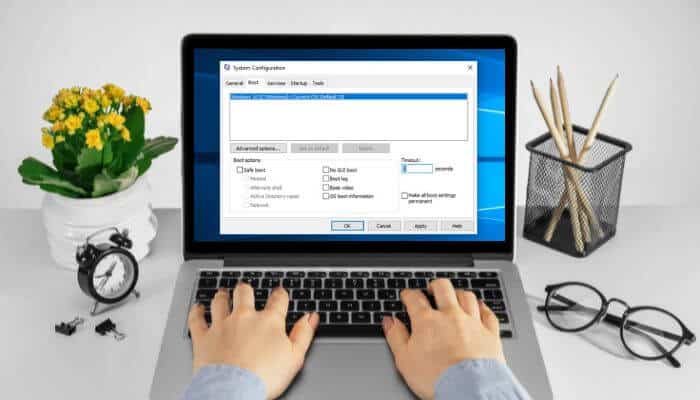
Windows Boot Manager is a UEFI boot entry that directs the computer to the Windows bootloader stored on the EFI System Partition.
On most modern Windows computers, the recommended first entry is:
Windows Boot Manager
The internal SSD may also appear separately, but placing the physical drive above Windows Boot Manager is not always necessary. UEFI systems normally use the registered boot-manager entry to locate and start Windows correctly.
Do not delete or disable Windows Boot Manager unless you fully understand the computer’s boot configuration. A missing or damaged entry can prevent Windows from starting even when the SSD is still detected.
Common Devices Listed in a Boot Sequence
The available options depend on the hardware connected to the computer and the features enabled in its firmware.
- Windows Boot Manager: This is normally the main boot option for a Windows computer using UEFI.
- Internal SSD or Hard Drive: This is the storage device containing the operating system. Depending on the firmware, the drive may appear by its manufacturer and model number.
- USB Storage Device: This allows the computer to start from a bootable flash drive or external drive. It is commonly used for operating-system installation, recovery, diagnostics, and live Linux environments.
- CD or DVD Drive: Older PCs may include an optical drive as a boot option. It can be used for installation discs, recovery media, and diagnostic tools.
- Network or PXE Boot: Network boot allows a computer to load installation or management software from a server instead of a local drive. It is commonly used by businesses, schools, repair centers, and IT departments, and may appear in the BIOS or UEFI menu as PXE Boot, Network Boot, UEFI IPv4, UEFI IPv6, Onboard NIC, or LAN Boot.
- UEFI Shell: The UEFI Shell is an advanced command environment used for firmware management, diagnostics, scripts, and development. Most home users do not need to place it first.
- Removable Devices: This category may include USB drives, memory cards, external disks, and other removable media.
What Should the Default BIOS Boot Order Be?
There is no single order that applies to every computer. However, a typical Windows PC may use the following priority:
| Priority | Boot option |
| 1 | Windows Boot Manager |
| 2 | Internal SSD or hard drive |
| 3 | USB storage device |
| 4 | CD or DVD drive |
| 5 | Network or PXE boot |
Some UEFI computers show only Windows Boot Manager as the normal operating-system entry. Others place removable devices above the internal drive but skip them when they do not contain bootable software.
For everyday use, keep the installed operating system or its boot manager first. This reduces unnecessary device checks and prevents the computer from accidentally starting unfamiliar external media.
Why Would You Change the BIOS Boot Order?
Understanding What Is BIOS Boot Order is becomes especially useful when your computer needs to start from something other than its normal operating-system drive. Although most users rarely change the sequence, several situations may require a different startup device.
- Installing Windows or Linux: Select a bootable USB drive to launch the operating-system installer.
- Using recovery tools: Start from recovery media when Windows cannot boot or repair itself.
- Running hardware diagnostics: Use bootable tools to test memory, storage, or other components.
- Trying Linux without installing it: A live USB lets you test a Linux distribution without changing the internal drive.
- Restoring a system image: Backup software may require separate bootable recovery media.
- Starting from a cloned drive: After moving Windows to a new SSD, you may need to select the new drive or Windows Boot Manager.
- Deploying computers over a network: Businesses and schools may temporarily prioritize PXE boot for system installation or management.
- Fixing startup problems: A BIOS update, drive replacement, or firmware reset may change the boot priority and prevent the correct operating system from loading.
For temporary tasks, using the one-time boot menu is usually safer than permanently changing the saved sequence.
When Should You Avoid Changing the BIOS Boot Order?
Knowing What Is BIOS Boot Order also means understanding when to leave it unchanged. If Windows starts normally and you are not using installation, recovery, diagnostic, or network-deployment media, there is usually no reason to adjust the startup sequence.
Do not change boot priority to:
- Make Windows or applications run faster
- Improve gaming performance
- Increase storage capacity
- Update drivers
- Fix an internet connection
Boot priority only controls where the computer looks for startup software. It does not improve performance after the operating system has loaded.
You should also avoid changing firmware settings when:
- You cannot access your BitLocker recovery key.
- The computer belongs to an employer or school.
- A BIOS or UEFI administrator password protects the settings.
- You do not know whether Windows uses UEFI or Legacy mode.
- The internal drive is not detected in the firmware.
- You have not recorded the original configuration.
When you need to boot from USB only once, use the one-time boot menu instead of permanently changing the saved order.
How to Check the Current Boot Order
What Is BIOS Boot Order on your computer right now? Before making any changes, it is important to see the current startup sequence so you know which device the system tries first.
Follow these steps:
- Restart or completely shut down the computer.
- Turn it on and immediately press the manufacturer’s setup key repeatedly.
- Open a menu named Boot, Boot Options, Boot Configuration, Startup, or System Configuration.
- Locate Boot Priority, Boot Sequence, or UEFI Boot Order.
- Review the listed entries without changing unrelated settings.
Before modifying anything, take a photo of the existing configuration. This makes it easier to restore the original settings if something goes wrong.
How to Enter BIOS or UEFI Settings
Understanding What Is BIOS Boot Order becomes much easier once you know how to access the firmware settings. The exact method depends on your computer manufacturer.
Method 1: Use the Startup Key
Press the required key immediately after turning on or restarting the PC.
| Manufacturer | BIOS/UEFI Key | One-Time Boot Key |
|---|---|---|
| Dell | F2 | F12 |
| HP | Esc or F10 | Esc or F9 |
| Lenovo | F1, F2, or Novo Button | F12 or Novo Button |
| ASUS | F2 or Delete | Esc or F8 |
| Acer | F2 or Delete | F12 |
| MSI | Delete | F11 |
| Gigabyte | Delete | F12 |
| Microsoft Surface | Volume Up + Power | Volume Down + Power |
These shortcuts can vary by model. If a key does not work, check the manufacturer’s support documentation.
Method 2: Enter UEFI Through Windows 11
If Windows opens normally:
- Open Settings.
- Select System > Recovery.
- Under Advanced Startup, select Restart Now.
- Choose Troubleshoot.
- Select Advanced Options.
- Choose UEFI Firmware Settings.
- Select Restart.
The computer should boot directly into the firmware interface.
Method 3: Enter UEFI Through Windows 10
- Open Settings.
- Select Update & Security > Recovery.
- Under Advanced Startup, select Restart Now.
- Choose Troubleshoot.
- Open Advanced Options.
- Select UEFI Firmware Settings.
- Choose Restart.
Windows 10 Note: Although these steps still work, standard Windows 10 support ended on October 14, 2025.
Method 4: Use the Windows Sign-In Screen
If you cannot access the desktop:
- Select the Power icon.
- Hold Shift.
- Click Restart.
- Select Troubleshoot.
- Open Advanced Options.
- Choose UEFI Firmware Settings.
Once inside the firmware, you can view startup settings, check device priorities, and better understand What Is BIOS Boot Order and how it affects your computer’s startup process.
Fast Boot vs Windows Fast Startup
Fast Boot and Windows Fast Startup sound similar, but they are different features.
| Feature | Where it operates | What it does |
| Firmware Fast Boot | BIOS or UEFI | Reduces hardware checks and device initialization |
| Windows Fast Startup | Windows | Uses a partial hibernation process to speed up startup after shutdown |
Firmware Fast Boot can make the startup-key window extremely short. It may also delay or skip the initialization of certain USB keyboards and removable devices.
When the BIOS key does not work:
- Use Advanced startup in Windows to open UEFI Firmware Settings.
- Perform a complete shutdown and try again.
- Begin holding or repeatedly pressing the setup key before pressing the power button.
- Connect a wired keyboard directly to the computer.
- Try another USB port, especially on an older desktop.
- Disable firmware Fast Boot only when necessary.
Do not confuse firmware Fast Boot with the Windows Fast Startup setting. Disabling Windows Fast Startup does not directly change the BIOS boot order.
Is It Safe to Change Boot Order?
In most cases, yes.
Changing the boot order alone does not normally:
- Delete files
- Format drives
- Remove Windows
- Change installed applications
- Reset user accounts
The main risk is accidentally selecting an incorrect startup device or modifying unrelated firmware settings at the same time.
For this reason, record the original configuration before making changes.
How to Change BIOS Boot Order Safely
What Is BIOS Boot Order without knowing how to change it safely? Fortunately, the process is usually straightforward, although menu names and controls vary between manufacturers.
Follow these steps:
- Disconnect unnecessary external storage devices.
- Restart the computer and enter the BIOS or UEFI settings.
- Open the Boot or Startup section.
- Locate the Boot Priority or Boot Sequence list.
- Select the device or boot-manager entry you want to move.
- Use the available controls to change its position.
- Confirm that the normal operating-system entry remains available.
- Select Save and Exit.
- Confirm the change if prompted.
- Allow the computer to restart.
Depending on the firmware, you may use:
- Arrow keys
- Plus (+) and minus (-) keys
- F5 and F6
- Page Up and Page Down
- Drag-and-drop controls
- On-screen arrows
Before saving any changes, double-check the new order to ensure the correct startup device appears first. Always follow the instructions displayed within the firmware interface, as controls and menu layouts can differ between systems.
How to Restore the Original BIOS Boot Order
What Is BIOS Boot Order if the wrong startup device prevents your computer from loading correctly? In most cases, restoring the original boot priority can quickly resolve the problem.
Follow these steps:
- Disconnect any temporary installation or recovery media.
- Enter the BIOS or UEFI settings.
- Open the Boot or Startup menu.
- Move Windows Boot Manager or the primary operating-system entry to the top of the list.
- Place USB, optical, and network boot options below it.
- Select Save Changes and Exit.
- Restart the computer.
If Windows Boot Manager is missing, restoring the order alone may not fix the issue. First, confirm that the internal drive is detected by the firmware. If the drive appears but Windows still does not start, use Windows Startup Repair or recovery media.
Some systems also include options such as Load Setup Defaults, Restore Defaults, or Load Optimized Defaults. Use these only as a last resort, because they may reset Secure Boot, storage-controller, virtualization, fan, and other firmware settings—not just the boot order.
Safety and BitLocker Checks Before Changing Boot Order
What Is BIOS Boot Order without understanding the risks of changing it? Although adjusting boot priority usually does not erase files, firmware and startup changes can affect how a protected computer verifies its operating system.
Before saving any changes:
- Photograph or write down the current boot order.
- Confirm that the internal system drive is detected.
- Keep Windows Boot Manager available in the boot list.
- Disconnect unnecessary external storage devices.
- Change only one setting at a time.
- Avoid switching between UEFI and Legacy mode unless necessary.
- Do not modify SATA, AHCI, RAID, TPM, or Secure Boot settings just to reorder devices.
- Back up important files before using installation, recovery, or disk-management tools.
Taking a few minutes to verify these settings can help prevent startup issues and make it easier to restore the original configuration if something goes wrong.
Check BitLocker or Device Encryption
What Is BIOS Boot Order without understanding how security features can react to startup changes? On some BitLocker-protected systems, changing the boot order or other firmware settings may trigger a recovery-key request during startup.
Before entering the BIOS or UEFI settings:
- Check whether BitLocker or Device Encryption is enabled.
- Save the recovery key somewhere accessible from another device.
- Do not keep the only copy on the computer being modified.
- Follow official guidance if firmware updates or TPM changes require BitLocker protection to be suspended.
- Re-enable or resume protection after completing the planned changes.
If a BitLocker recovery screen appears, it does not automatically mean that files were deleted or damaged. It simply means Windows requires additional verification before unlocking the encrypted system drive.
Use the One-Time Boot Menu When Possible
A one-time boot menu lets you select a device for the current startup without permanently modifying the saved priority.
For example, when installing Windows from a USB drive:
- Insert the bootable USB.
- Restart the computer.
- Press the one-time boot-menu key.
- Select the USB drive.
- Press Enter.
The next restart should return to the normal saved sequence.
This method is generally better when you need to use a USB drive only once. It avoids leaving USB or network boot above the internal system drive.
Permanent Boot Order vs One-Time Boot Menu
| Feature | Permanent boot order | One-time boot menu |
| Duration | Remains until changed | Applies to one startup |
| Best use | Long-term configuration | USB installers and diagnostics |
| Changes saved priority | Yes | No |
| Risk of forgetting the change | Higher | Lower |
| Normal startup afterward | Depends on saved order | Returns automatically |
Use the temporary menu for one-time tasks. Change the permanent order only when the new priority should remain across future restarts.
Should You Use Boot Order or the One-Time Boot Menu?
For most users, the one-time boot menu is the better option.
Use Boot Order When
- The change should remain permanent.
- The computer always starts from a different device.
Use the One-Time Boot Menu When
- Installing Windows
- Running diagnostics
- Launching recovery tools
- Testing Linux
This reduces the risk of forgetting to restore the original settings.
How to Boot from a USB Drive
What Is BIOS Boot Order if you need to install Windows, run recovery tools, or launch a different operating system? In these situations, booting from a USB drive allows your computer to start from external media instead of the internal drive.
Step 1: Create a Bootable USB
A USB drive must contain properly configured boot files. Simply copying an ISO file to a flash drive usually does not make it bootable. Use the operating system’s official media creation tool or another trusted utility.
Step 2: Connect the USB Before Startup
Insert the USB drive before turning on or restarting the computer. For best results, connect it directly to the device rather than through an unpowered USB hub.
Step 3: Open the One-Time Boot Menu
Restart the computer and press the appropriate boot-menu key, such as F12, F11, F9, or Esc, depending on the manufacturer.
Step 4: Select the Correct USB Entry
The same USB drive may appear twice:
- UEFI: USB device name
- USB device name (Legacy mode)
On a modern UEFI system, choose the entry beginning with UEFI unless the operating system or tool specifically requires Legacy mode.
Step 5: Confirm That the USB Starts
If the normal operating system loads instead, the USB may not have been selected, may not be bootable, or may be incompatible with the current firmware configuration.
Why Is the USB Drive Not Showing in the Boot Menu?
What Is BIOS Boot Order if your USB drive never appears as a startup option? In most cases, the problem is not the boot order itself but a configuration, compatibility, or hardware issue.
1. The USB Is Not Bootable
The USB drive must contain a valid bootloader. If it was not created correctly, the firmware may ignore it. Recreate the drive using a trusted tool and a verified installation image.
2. The USB Was Connected Too Late
Some BIOS and UEFI systems detect removable devices only during startup. Connect the USB drive before turning on or restarting the computer.
3. The Port Is Not Recognized During Startup
Try a different USB port. On older computers, a USB 2.0 port may work more reliably during pre-boot operation than certain USB 3.x ports.
4. The USB Uses an Incompatible Boot Format
A UEFI system may not recognize media created only for Legacy BIOS, while an older BIOS system may not boot UEFI-only media. Make sure the USB matches the firmware mode being used.
5. USB Boot Is Disabled
Check the firmware settings for options such as:
- USB Boot
- External Device Boot
- Boot from Removable Media
- Legacy USB Support
Enable only the settings required for your setup.
6. Secure Boot Blocks the Bootloader
Secure Boot may prevent unsigned or untrusted software from starting. Whenever possible, use trusted and properly signed installation or recovery media.
7. The USB Drive or Port Is Faulty
If the USB still does not appear, test it on another computer or try a different known-working flash drive. A faulty drive or port can prevent the firmware from detecting bootable media.
If none of these solutions work, review the firmware settings again and confirm that the USB was created correctly for your system’s UEFI or Legacy configuration.
BIOS Boot Order vs Boot Mode
Many beginners confuse boot order with boot mode, but they control different parts of the startup process. Understanding this difference is essential when learning What Is BIOS Boot Order and troubleshooting startup issues.
- Boot order determines which device or boot entry the firmware checks first.
- Boot mode determines whether the computer starts using UEFI or Legacy BIOS compatibility.
For example, moving a USB drive above Windows Boot Manager changes the boot order. Switching from UEFI to Legacy mode changes how the firmware attempts to start the operating system.
A Windows installation created in UEFI mode may stop booting if the firmware is changed to Legacy mode. Likewise, an older operating system installed in Legacy mode may not appear correctly after switching to UEFI.
If a USB drive is not showing in the boot menu, do not immediately change the boot mode. First, verify that the USB was created correctly for the current firmware configuration.
UEFI/GPT vs Legacy BIOS/MBR Compatibility
What Is BIOS Boot Order without understanding how firmware mode and disk format work together? While boot order controls startup priority, the firmware mode and partition style determine whether the operating system can boot successfully.
Most modern Windows computers use:
- UEFI firmware
- GPT partitioning
- Windows Boot Manager
- Older installations may use:
- Legacy BIOS or CSM
- MBR partitioning
- A physical hard-drive boot entry
When Windows installation media starts in UEFI mode, the destination drive is generally expected to use GPT. Installation media started in Legacy BIOS mode typically works with MBR-based installations.
Using the wrong combination can cause problems such as:
- The destination disk cannot be selected.
- Windows reports an incompatible partition style.
- Windows Boot Manager is not created correctly.
- The new installation does not appear in the boot menu.
- The computer returns directly to BIOS after installation.
What Is BIOS Boot Order often becomes confusing when the real issue is firmware compatibility rather than startup priority. For most modern systems, select the USB entry beginning with UEFI and avoid changing the firmware mode of an existing Windows installation unless you fully understand the implications and have a backup of important files.
What Is Secure Boot, and Does It Affect Boot Order?
Secure Boot is a UEFI security feature that checks whether boot software is trusted and digitally signed before allowing it to run.
Secure Boot and boot order serve different purposes:
| Setting | Main purpose |
| Boot order | Chooses which device or entry starts first |
| Secure Boot | Verifies the trust of boot software |
| UEFI or Legacy mode | Chooses the firmware boot method |
| Fast Boot | Reduces some startup checks |
| TPM | Stores and protects security information |
A device can appear first in the boot order but still fail to start if Secure Boot does not trust its bootloader.
For Windows 11 systems, avoid disabling Secure Boot without a clear reason. Use official Windows installation media or a Linux distribution that supports Secure Boot whenever possible.
Does Changing the BIOS Boot Order Delete Data?
What Is BIOS Boot Order, and can changing it accidentally erase your files? Fortunately, changing the boot order alone does not normally affect the data stored on your computer.
Adjusting boot priority does not usually:
- Delete personal files
- Format a storage drive
- Uninstall Windows
- Reset user accounts
- Remove installed applications
The setting only changes where the firmware looks for bootable software during startup.
The real risk begins after booting from an installation USB, recovery tool, disk utility, or cloning application. These tools may include options that can erase partitions, overwrite data, or reinstall an operating system if used incorrectly.
Before using any installer or recovery software, read each prompt carefully and make sure important files are backed up. A few extra minutes of caution can help prevent costly data-loss mistakes.
Common BIOS Boot Order Problems and Solutions
Even after learning What Is BIOS Boot Order, startup problems can still occur when firmware settings, boot files, or storage devices are not configured correctly. The good news is that most issues can be identified with a few simple checks.
Computer Shows “No Bootable Device”
What Is BIOS Boot Order if the computer cannot find a device to start from? First, enter BIOS or UEFI settings and confirm that the internal SSD or hard drive is detected.
If the drive appears:
- Place Windows Boot Manager first in the boot list.
- Save the settings and restart.
- Disconnect unnecessary USB devices.
- Use Windows recovery tools if the problem continues.
If the drive is not detected, the issue is more likely related to hardware, storage settings, or a failed drive.
Computer Boots Directly Into BIOS
This usually means the firmware cannot find a valid bootloader.
Check whether:
- The system drive appears in storage information.
- Windows Boot Manager is listed.
- The correct UEFI or Legacy mode is enabled.
- The drive passes hardware diagnostics.
What Is BIOS Boot Order often becomes confusing when the real problem is a missing bootloader or undetected storage device rather than the boot sequence itself.
Windows Boot Manager Is Missing
A missing Windows Boot Manager entry may be caused by:
- Corrupted boot files
- A damaged EFI System Partition
- A firmware reset
- A changed boot mode
- A replaced or cloned drive
Before attempting advanced repairs, use Windows Startup Repair and back up any accessible data.
Why Are Boot Options Missing or Greyed Out?
If a device does not appear in the boot menu, possible causes include:
- The drive is not detected.
- The device is not bootable.
- Secure Boot blocks the bootloader.
- USB or network boot is disabled.
- A firmware password or policy restricts access.
What Is BIOS Boot Order if the device is missing entirely? In that case, check the hardware first before changing firmware settings.
Boot Order Changes Are Not Saving
If changes disappear after restarting:
- Make sure you selected Save Changes and Exit.
- Check for a firmware administrator password.
- Verify that the motherboard CMOS battery is functioning correctly.
- Confirm that a business or school policy is not restoring settings automatically.
Restoring default firmware settings should be used only when necessary.
Computer Always Boots From USB
If the computer starts from a USB drive every time, remove the USB device and restart. Then place Windows Boot Manager first or use the one-time boot menu for temporary USB startup.
Computer Tries Network Boot
Messages mentioning PXE, IPv4, IPv6, or a network adapter usually indicate that the firmware reached a network-boot option.
This can happen when:
- Network boot is above the internal drive.
- The system drive is missing.
- Windows Boot Manager is damaged.
Move Windows Boot Manager above network boot and verify that the internal drive is detected.
Internal SSD Is Detected but Will Not Boot
Seeing the drive in BIOS does not guarantee that Windows can start.
Possible causes include:
- Corrupted boot files
- Incorrect boot mode
- Damaged partitions
- File-system errors
- SSD failure
- An incomplete cloning process
What Is BIOS Boot Order in this situation? It may not be the main problem at all. Run diagnostics and use recovery tools before changing additional firmware settings.
The Wrong Operating System Starts
On dual-boot systems, multiple boot entries may exist, such as Windows Boot Manager and a Linux bootloader.
Move the preferred boot manager to the top of the list or select the desired operating system from its startup menu. Avoid deleting unfamiliar entries until you know exactly what they control.
Understanding What Is BIOS Boot Order helps you diagnose startup issues more quickly, but always verify that storage devices, boot files, and firmware settings are functioning correctly before making major changes.
Can a BIOS Update Change the Boot Order?
What Is BIOS Boot Order after a BIOS update or firmware reset? In some cases, the startup sequence may change automatically, causing the computer to boot from the wrong device or display startup errors.
A firmware update, BIOS reset, motherboard battery failure, storage replacement, or factory-default restoration can modify boot settings without warning.
After any of these events, verify that:
- The correct UEFI or Legacy boot mode is active.
- Windows Boot Manager appears in the boot list.
- The operating-system entry is first in the startup sequence.
- Secure Boot matches the previous configuration.
- The storage-controller mode (AHCI, RAID, or similar) has not changed.
If Windows does not start correctly after an update, avoid changing multiple settings at once. Instead, make one adjustment, save it, and test the result before moving on to the next change. This approach makes troubleshooting easier and reduces the risk of creating additional startup problems.
Final BIOS Boot Order Checklist
What Is BIOS Boot Order if you are not sure whether the settings are correct before exiting the firmware? Use this quick checklist to verify everything before restarting your computer.
Before selecting Save Changes and Exit, confirm that:
- Windows Boot Manager or the normal operating-system entry is available.
- The intended startup device is placed in the correct position.
- Temporary installation, recovery, or diagnostic media has been removed when no longer needed.
- UEFI, Legacy mode, Secure Boot, TPM, and storage-controller settings remain unchanged unless intentionally modified.
- The original configuration has been recorded.
- Your BitLocker recovery key is accessible if the system uses encryption.
- You selected Save Changes and Exit before restarting.
Taking a few moments to review these settings can help prevent startup issues and make troubleshooting much easier if something does not work as expected.
Editorial Methodology
This guide was created using official Microsoft documentation, UEFI specifications, motherboard manufacturer support resources, Windows deployment guidance, and firmware configuration best practices.
Because BIOS and UEFI interfaces vary by manufacturer, users should verify instructions for their exact device model before modifying firmware settings.
Conclusion
By now, you should have a clear understanding of What Is BIOS Boot Order and why it plays an important role in the startup process. This setting determines whether your computer launches Windows through Windows Boot Manager, boots from a USB drive, opens recovery tools, or attempts a network startup.
Understanding What Is BIOS Boot Order can help you install operating systems, troubleshoot startup errors, and safely manage boot devices when needed. For everyday use, keep Windows Boot Manager or your primary operating-system drive first in the boot sequence. If you only need to boot from USB temporarily, use the one-time boot menu instead of permanently changing the saved order. Most importantly, record your original settings, keep your BitLocker recovery key accessible, and avoid changing firmware options unless you fully understand their purpose.
What Is BIOS Boot Order FAQs
1. What Is BIOS Boot Order and does it affect startup speed?
BIOS boot order can slightly affect startup time if the computer checks multiple devices before finding the operating system. However, it does not improve Windows performance after startup.
2. Can I change the BIOS boot order without reinstalling Windows?
Yes. Changing the boot order only changes the startup sequence. It does not reinstall, modify, or remove Windows.
3. How often should I check my BIOS boot order?
Most users never need to check it unless they are installing an operating system, using recovery tools, replacing hardware, or troubleshooting startup issues.
4. Can a virus change the BIOS boot order?
Some advanced malware may attempt to modify startup settings, but this is uncommon. Unexpected boot-order changes are more often caused by firmware resets, updates, or hardware changes.
5. What happens if two bootable devices are connected?
The computer normally starts from whichever bootable device appears first in the configured boot order.
6. Does BIOS boot order affect dual-boot systems?
Yes. In dual-boot setups, boot order helps determine which boot manager or operating system loads by default.
7. Can I lock the BIOS boot order from being changed?
Many BIOS and UEFI systems allow you to set an administrator password that prevents unauthorized changes to boot settings.
8. Should external hard drives appear in the BIOS boot order?
Yes. External drives may appear when connected, especially if they contain bootable software. For everyday use, they should usually remain below Windows Boot Manager.

