



How to Fix Slow Startup Windows is a common question for users whose PC takes forever to boot. You press the power button. You wait. And wait. And wait some more. If your Windows PC is slow to start, you already know how frustrating that feels. Maybe your coffee is going cold while your computer is still spinning that little loading circle. You are not alone. Slow startup on Windows is one of the most common problems people face in 2026, and the good news is that it is almost always fixable.
Learning how to fix slow startup Windows doesn’t require you to be a tech genius. Most of the time, the problem comes down to a few sneaky settings, too many apps fighting to load at once, or a storage drive that’s getting old. Whatever the reason, this guide will walk you through every possible fix from the simplest one-click solutions to the more advanced tricks that most people never try. We’ve done deep research, so you don’t have to.
Whether you’re running Windows 10 or Windows 11, all the fixes in this article apply to you. By the time you finish reading, your PC should be booting up fast the way it was always supposed to. Let’s dive in and fix this thing for good.
What Counts as a Slow Startup?
Before we fix anything, let’s understand what’s normal and what’s not.
| Storage Type | Normal Boot Time | Slow Boot Time |
| SSD (Solid State Drive) | Under 20 seconds | More than 45 seconds |
| SATA SSD (Older) | Under 45 seconds | More than 90 seconds |
| HDD (Hard Disk Drive) | Under 60 seconds | More than 2 minutes |
| NVMe SSD (Fast) | Under 15 seconds | More than 30 seconds |
If your PC is taking longer than these numbers, something is definitely wrong, and you need to learn how to fix slow startup Windows right away.
Hidden Causes of Slow Windows Startup
Most articles only tell you about startup apps. But that’s just the beginning. Here are the real, hidden causes behind a slow boot:
- Too many startup programs competing for CPU and RAM
- Fast Startup feature bugs ironically, this “speed” feature can slow things down
- Outdated or corrupted drivers, especially graphics and storage drivers
- Bloated Windows Registry full of old, useless entries from uninstalled software
- Malware or bloatware running silently in the background
- Nearly full hard drive Windows needs free space to breathe
- ULPS (Ultra-Low Power State) keeping your GPU in a deep sleep at startup
- Wrong BIOS boot order causing your PC to check USB drives or discs first
- Corrupted system files that force Windows to do extra repair work during boot
- Low RAM causing Windows to rely on slow virtual memory
- Windows Update running silently right after you log in
- Large or corrupted Windows Registry built up over months of installing and uninstalling apps
Understanding why the problem happens is half the battle. Now let’s talk about how to fix slow startup Windows step by step.
Fix 1: Disable Unnecessary Startup Programs (The Biggest Win)
This is the single most effective thing you can do when figuring out how to fix slow startup Windows. Every app that loads at startup steals memory and CPU time from Windows itself.
Here’s how to do it:
- Press Ctrl + Shift + Esc to open Task Manager
- Click the “Startup apps” tab (in Windows 11) or “Startup” tab (in Windows 10)
- Look at the “Startup impact” column focus on anything marked High
- Right-click any app you don’t need at startup and click Disable
Common culprits to disable:
- Spotify
- Discord
- Skype or Teams (if you don’t use it daily)
- Adobe Updater
- OneDrive (unless you need it immediately)
- Manufacturer bloatware (HP Support, Lenovo Vantage, etc.)
Important: Disabling a startup app does NOT uninstall it. It just stops it from loading automatically. You can still open it manually whenever you want.
This one fix alone can cut your boot time by 20 to 60 percent.
Fix 2: Turn Off (or Toggle) Fast Startup
Here’s something surprising: the feature called “Fast Startup” is actually causing slow startups for a lot of people in 2026. It sounds like it should help, but it doesn’t always work the way it should.
Fast Startup works by saving a partial system state to your hard drive when you shut down. The problem? It keeps your Windows kernel partially loaded and drivers in a frozen state. This can cause glitches, slow loading, and even driver conflicts.
How to disable Fast Startup:
- Click Start and search for “Control Panel.”
- Open Control Panel → Power Options
- Click “Choose what the power buttons do” on the left
- Click “Change settings that are currently unavailable.”
- Uncheck “Turn on fast startup (recommended).”
- Click Save Changes
Restart your PC and see if boot time improves. If it gets slower (rare), you can always turn it back on. If you have a modern SSD, you likely don’t need Fast Startup at all; modern SSDs boot in under 20 seconds even without it.
Fix 3: Update Your Drivers (Especially GPU and Storage)
Old or broken drivers are a sneaky reason many people struggle with how to fix slow startup Windows. When drivers are outdated, Windows has to work harder during boot to initialize hardware properly.
The most important drivers to update:
- Graphics card driver (NVIDIA, AMD, or Intel)
- Chipset driver (from your motherboard manufacturer)
- Storage/AHCI driver (controls how Windows talks to your SSD or HDD)
- Network adapter driver
How to update drivers:
- Right-click the Start button
- Open Device Manager
- Expand categories like Display adapters and IDE ATA/ATAPI controllers
- Right-click a device → Update driver → Search automatically for drivers
For best results, visit your laptop or PC manufacturer’s website and download the latest drivers directly.
Fix 4: Run SFC and DISM to Fix Corrupted System Files

Sometimes Windows itself has broken or corrupted files that slow down booting. Windows has two built-in tools to find and repair these, and they’re completely free to use.
Step 1: Run SFC (System File Checker)
- Click Start and search for “Command Prompt”
- Right-click it and choose “Run as administrator”
- Type: sfc /scannow and press Enter
- Wait for the scan to complete (takes 5–15 minutes)
Step 2: Run DISM (if SFC finds errors it can’t fix)
In the same Command Prompt, type:
DISM /Online /Cleanup-Image /RestoreHealth
Press Enter and wait. This connects to Microsoft’s servers to download clean replacement files.
After both commands finish, restart your PC. This often fixes how to fix slow startup Windows issues caused by file corruption after a bad update.
Fix 5: Disable ULPS in the Registry (The Hidden Fix Most People Miss)
This one is a real gem. ULPS (Ultra-Low Power State) is a feature for graphics cards, especially AMD cards, that puts the GPU into a deep sleep when it’s not being used. The problem? When your PC boots up, it has to wake the GPU from this deep sleep, which adds precious seconds to your startup time.
Warning: Always back up your registry before making changes. Go to regedit → File → Export to save a backup.
How to disable ULPS:
- Press Win + R, type regedit, and press Enter
- In the Registry Editor, click Edit → Find
- Type EnableULPS and press Enter
- When it finds the entry, double-click it and change the value to 0
- Keep pressing F3 to find all instances and change them all to 0
- Close Registry Editor and restart your PC
Many users who tried this fix reported boot times dropping from over 2 minutes down to around 15 seconds. It’s one of the most effective hidden fixes for how to fix slow startup Windows on systems with AMD graphics.
Fix 6: Free Up Disk Space
When your storage drive is almost full, Windows slows down dramatically especially at startup. Windows needs free space for temporary files, virtual memory, and the hibernation file used by Fast Startup.
Quick ways to free up space:
- Disk Cleanup: Search for “Disk Cleanup” in Start → Select your C: drive → Check all boxes including “System files” → Click OK
- Delete temp files: Press Win + R, type %temp%, press Enter, then delete everything in that folder
- Uninstall unused apps: Go to Settings → Apps → sort by Size → uninstall what you don’t need
- Move large files: (videos, photos) to an external drive or cloud storage
Aim to keep at least 15–20% of your drive free for best performance. If your C: drive is 90%+ full, that’s likely a big reason you’re searching for how to fix slow startup Windows.
Fix 7: Adjust Virtual Memory (Page File) Settings
Virtual memory (also called the Page File) is a section of your storage drive that Windows uses as fake RAM when your real RAM gets full. If it’s set too small or misconfigured, startup can drag.
How to optimize the Page File:
- Search for “Advanced system settings” in the Start menu and open it
- Under the Advanced tab, click Settings in the Performance section
- Go to the Advanced tab inside Performance Options
- Click Change under Virtual Memory
- Uncheck “Automatically manage paging file size for all drives”
- Select your C: drive, choose “System managed size”, click Set
- Click OK, restart your PC
Letting Windows manage the Page File automatically usually gives the best startup performance.
Fix 8: Check and Fix Your BIOS Boot Order
Your computer’s BIOS (Basic Input/Output System) tells the PC which device to boot from first. If it’s set to check a USB drive, DVD drive, or network before your main hard drive, it adds seconds to every startup.
How to fix the boot order:
- Restart your PC
- Press F2, F8, F10, F12, or Delete during the startup screen (the key depends on your PC brand)
- Navigate to the “Boot” section
- Make sure your SSD or HDD (the one with Windows) is listed first
- Save and exit (usually F10)
Also, look for an option called “Fast Boot” or “UEFI Fast Boot” inside the BIOS; enabling this reduces the hardware check time during startup.
Fix 9: Scan for Malware and Bloatware
Malware is a huge reason why PCs slow down, and it often hides in the startup process. If you’re wondering how to fix slow startup Windows and nothing else is working, this could be your culprit.
How to scan for malware:
- Open Windows Security from the Start menu
- Click Virus & threat protection
- Click Quick scan or better yet, click Scan options and choose Full scan
Also check for Potentially Unwanted Programs (PUPs), these are not technically viruses, but they’re software that snuck onto your PC without your permission (usually bundled with free downloads) and runs in the background at startup.
Use Malwarebytes Free (available at malwarebytes.com) alongside Windows Defender for a more thorough check.
Fix 10: Disable Visual Effects for Faster Startup
Windows 10 and 11 are full of fancy animations and visual effects. These look nice, but they slow things down, especially on older hardware.
How to reduce visual effects:
- Search for “Adjust the appearance and performance of Windows” in Start
- Choose “Adjust for best performance” to turn off all effects
- Or manually uncheck things like “Animate windows when minimizing and maximizing.”
- Click Apply → OK
This doesn’t make your PC ugly; it just removes some transitions and shadows. Your PC will feel noticeably snappier, especially right after startup.
Fix 11: Perform a Clean Boot to Find Problem Apps
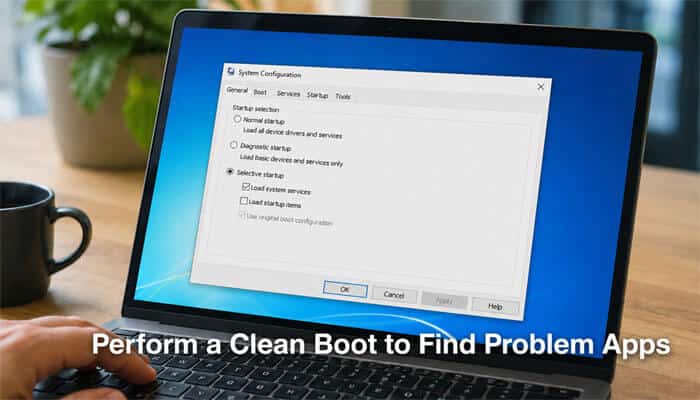
A clean boot starts Windows with only the most essential Microsoft services running. This helps you figure out if a third-party app or service is causing your slow startup.
How to do a clean boot:
- Press Win + R, type msconfig, press Enter
- Under the Services tab, check “Hide all Microsoft services”, then click Disable all
- Go to the Startup tab → click Open Task Manager
- Disable all startup items
- Click OK and restart
If your PC boots fast after a clean boot, one of your disabled apps was the problem. Re-enable them one by one to find the culprit.
Fix 12: Upgrade to an SSD (If You’re Still on HDD)
If you’re still running Windows on an old HDD (Hard Disk Drive), this is the single biggest upgrade you can make. It’s not a software fix, it’s hardware, but it’s worth mentioning.
| Upgrade | Expected Boot Time Improvement |
| HDD → SATA SSD | From 2 minutes → under 45 seconds |
| HDD → NVMe SSD | From 2 minutes → under 20 seconds |
| Add more RAM (4GB → 8GB) | Noticeably faster post-login |
| Larger SSD (freeing space) | Reduces boot lag on full drives |
Even a basic, affordable SATA SSD will transform a slow laptop. Installing one is something a tech shop can do for $18 to $36 USD, and it’s worth every rupee.
Fix 13: Update Windows and Keep It Updated
This sounds obvious, but many people delay Windows updates for weeks. Updates often contain important boot performance improvements, security patches, and driver fixes.
How to check for updates:
- Open Settings → Windows Update
- Click “Check for updates.”
- Install any pending updates and restart
After a major Windows update, startup may be temporarily slow as Windows finalizes changes in the background. Give it one or two reboots to settle down before troubleshooting further.
Fix 14: Reset Your PC (Last Resort)
If you’ve tried everything and your PC is still crawling at startup, a Reset is the nuclear option, but it works. You can choose to keep your personal files while removing all apps and settings, or wipe everything completely.
How to reset Windows:
- Go to Settings → System → Recovery
- Click “Reset this PC” → Get Started
- Choose “Keep my files” (recommended) or “Remove everything.”
- Follow the on-screen instructions
After a reset, your PC will boot like it’s brand new. You’ll need to reinstall your apps, but the slowness will be gone.
How to Fix Slow Startup Windows – All Fixes at a Glance
| Fix | Difficulty | Time Needed | Expected Improvement |
| Disable startup apps | Easy | 5 minutes | High |
| Toggle Fast Startup | Easy | 2 minutes | Medium–High |
| Update drivers | Medium | 15–30 minutes | Medium |
| Run SFC / DISM | Medium | 15–30 minutes | Medium |
| Disable ULPS (Registry) | Advanced | 10 minutes | High (AMD GPUs) |
| Free up disk space | Easy | 10–20 minutes | Medium |
| Adjust virtual memory | Medium | 10 minutes | Low–Medium |
| Fix BIOS boot order | Advanced | 10 minutes | Medium |
| Scan for malware | Easy | 20–45 minutes | High |
| Disable visual effects | Easy | 5 minutes | Low–Medium |
| Clean boot test | Medium | 15 minutes | Diagnostic |
| Upgrade to SSD | Hardware | 1–2 hours | Very High |
| Update Windows | Easy | 10–30 minutes | Low–Medium |
| Reset Windows | Medium | 1–2 hours | Very High |
How to Measure Your Boot Time
Want to know exactly how long your PC takes to boot? Windows has a built-in tool for that.
Using Event Viewer:
- Search for “Event Viewer” in Start and open it
- Navigate to: Applications and Services Logs → Microsoft → Windows → Diagnostics-Performance → Operational
- Filter for Event ID 100; this shows your exact boot time in milliseconds
This is a great way to track whether your fixes are actually working. If your boot time goes from 90,000ms (90 seconds) to 18,000ms (18 seconds), you’ll know you’ve made real progress in solving how to fix slow startup Windows.
Final Thoughts: You Can Fix Slow Startup Windows
A slow startup doesn’t have to be your daily reality. In almost every case, how to fix slow startup Windows comes down to one of the fixes we’ve covered above: disabling startup apps, toggling Fast Startup, updating drivers, scanning for malware, or, in the worst case, doing a clean reset or hardware upgrade.
Start with the easy fixes first (Fix 1, Fix 2, Fix 9). Those three alone solve the problem for the majority of users. If you still have issues after that, work your way through the more advanced fixes like the ULPS registry tweak or the BIOS boot order.
The most important thing is to be patient and systematic. Try one fix, restart, and measure your boot time. Then try the next one if needed. Before long, you’ll have your Windows booting up fast and smooth just the way it should be.
How to Fix Slow Startup Windows FAQs
1. Why is my Windows 11 startup so slow after an update?
After a major Windows update, your system may run background tasks (like indexing and optimization) for a few hours. Give it 1–2 restarts before troubleshooting. If it’s still slow after that, check startup apps and run SFC /scannow.
2. Is Fast Startup good or bad?
It depends. On HDDs, Fast Startup can save 30–90 seconds. On modern SSDs, it’s mostly unnecessary and can actually cause glitches. In 2026, most experts recommend disabling it, especially on SSDs.
3. Can too much RAM usage cause slow startup?
Yes. If your PC only has 4GB of RAM, Windows and your startup apps will quickly fill it up, forcing Windows to use slow virtual memory. Upgrading to 8GB or 16GB of RAM is a significant fix for slow startup.
4. How often should I run disk cleanup?
Once a month is a good habit. If you install and uninstall apps frequently, once every two weeks is even better.
5. My laptop is 5 – 6 years old. Should I buy a new one or fix the startup?
If the hardware is otherwise fine, fixing startup is almost always cheaper. Start with disabling startup apps and, if possible, replacing an old HDD with an SSD. That alone can make a 6-year-old laptop feel new again.

