


The iPhone models are evolving with advanced features and technologies, allowing users to have a better experience. On the other hand, those who use them should understand that they might experience some troubles. Therefore, they should know how to fix them from different sources. Sometimes, iPhone devices will display SOS in the top-left corner, resulting in confusion. Knowing what does SOS mean allows iPhone users to overcome the issue as soon as possible. Moreover, it provides methods to access the phone smoothly without any hassles.
What does SOS mean?
It is important for iPhone users to know what does SOS mean with attention. SOS mode means that a mobile device has lost a connection to a carrier’s network, and users can make only emergency calls based on a country’s network regulations. The problem occurs due to a network error or other issues. Hence, one should evaluate the reasons for the SOS mode that help to resolve it quickly.
What are the common reasons for the appearance of SOS mode?
Several factors can trigger SOS mode on iPhones, and knowing them will help users to resolve them immediately.
Here are some reasons that can cause SOS mode on a phone.
1. No network coverage
It is the most common factor that can activate the SOS mode, and users won’t get any signals due to a poor network. When an iPhone can’t reach a carrier’s network, it automatically flips into SOS only.
2. A carrier is having a temporary outage
A temporary outage can influence SOS mode if a tower goes down due to technical glitches or other issues. For instance, a fiber line requires overnight restoration when it goes down.
3. SIM card issues
SOS mode appears on iPhone devices if the SIM card is not properly inserted, is damaged, or is incompatible with the phone.
4. Roaming or international travel
A phone’s carrier network doesn’t provide service when traveling abroad due to its limited coverage. Some networks won’t work completely in countries where services are not available.
5. Software glitches or bugs
Software glitches or bugs might result in SOS mode, and iPhone users should check them for smooth functioning.
6. Carrier settings issue
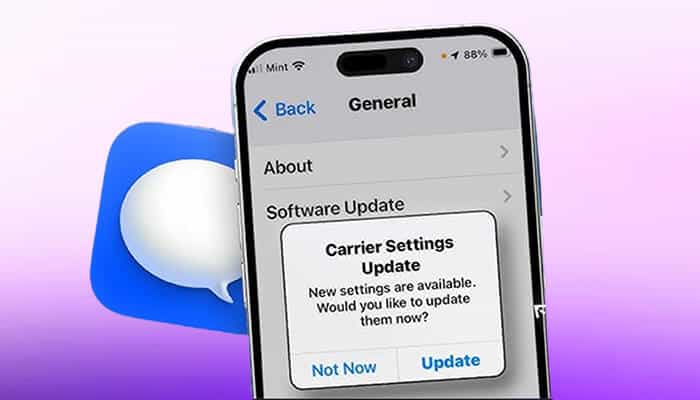
The iPhone used by a person may have issues connecting to a carrier’s network if the settings are improperly configured or outdated. It happens when a device requires a network update or change.
What does SOS mean on smartphone, and what are the ways to fix the issue?
If anyone encounters SOS mode, they should understand what does SOS mean on smartphone to get more insights. Furthermore, they should know the ways to fix the issue to ensure smooth operations.
Here are some techniques to follow to resolve the SOS mode problem.
1. Moving to an area with proper network coverage
The best way to overcome SOS mode is to move to an area that has proper and stronger network coverage. It is wise to check the signal in a location that helps receive a call or text message without any disturbances. Anyone who sees the node inside an elevator or in the basement of a building should relocate to an area that has good network coverage.
2. Toggling airplane mode
Sometimes, iPhone devices might get stuck at SOS even in areas that have proper signals. It usually occurs if a phone isn’t registering the connection. In such scenarios, one should toggle airplane mode to fix the issue.
Here’s how users can do it.
1. The first step is a user should open the control center on an iPhone, tap on the airplane icon, and wait for 10 to 30 seconds. They should tap on the same icon again to get the desired outputs.
2. Alternatively, one can head to settings and turn on the toggle for airplane mode and wait for a few seconds to turn it off.
3. Restart Your Device
Restarting the iPhone device is another way to resolve the SOS activation mode. At the same time, one should wait for a few seconds and then turn it back on. This, in turn, gives ways to reestablish the connection with the network.
4. Checking the iPhone’s cellular settings
SOS mode occurs when the iPhone’s settings aren’t configured properly. Hence, users should check their iPhone’s cellular settings to overcome the problem. Not enabling automatic network selection can lead to errors while using a device. One should select the right network manually to determine which network a phone should connect to.
Here is how users should enable the automatic network selection
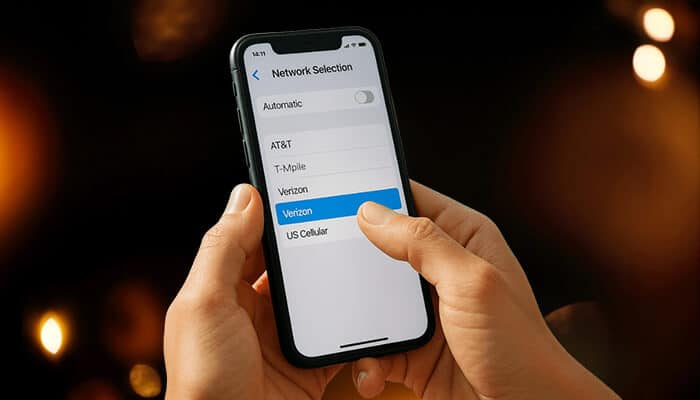
1. The first step is to open the settings menu on the iPhone device and tap on the mobile service/cellular option.
2. The next step is to tap on network selection and ensure that the toggle next to automatic is turned on.
3. If the network isn’t enabled, users will see a list of available networks and have to select one manually.
4. Checking the updates of a network provider’s settings
It is wise for iPhone users to check whether they have received a notification to update the network settings from the network service provider. Installing the updates will help prevent SOS activation mode on a device.
Here is how a user can do it:
1. One should open the settings tab on a device and go to General.
2. The second step is to tap the option for About.
3. If there’s a network provider update pending, then users should follow the necessary instructions to install the update.
4. Updating the iPhone device
Not updating the iPhone device can lead to software bugs, and users should consider updating it to the latest iOS software applications to meet their requirements.
Here are some steps to follow while updating a device.
1. Users should open the settings section and go to General.
2. The second step involves tapping on the software update option and installing the pending update.
3. Enabling data roaming when traveling abroad
SOS mode activates on the iPhone device when traveling to international countries. Enabling data roaming is the only solution to fix this problem, and users should check it properly.
Here is how users can enable data roaming
1. One should open the settings section on a device and navigate to cellular/mobile data.
2. The next step is to turn on the cellular data if it isn’t enabled.
3. In the next step, users should tap on cellular data options.
4. The final step is turning on the toggle for data roaming.
5. Removing and reinserting the SIM card
A faulty SIM card can activate the SOS mode on a device, which will lead to various issues. One should remove and reinsert the SIM card to ensure smooth performance. If the SIM card is old or damaged, then users should try using a new SIM card to overcome the problem.
How to prevent SOS mode after knowing the SOS meaning?
Knowing the SOS meaning allows iPhone users to turn off the mode on their devices with high efficiency. Furthermore, implementing the best practices provides ways to ensure that the device works well.
Here are some steps to follow to prevent SOS mode
1. Staying in areas with strong signals
SOS mode often occurs in areas with poor network coverage, and iPhone users should always try to stay in locations where a carrier provides strong signals on their device.
2. Checking for iOS updates
Apple regularly releases iOS updates that enhance performance and connectivity. Those who use iPhones should ensure that the devices are compatible with the latest version by checking for a software update.
3. Keeping the carrier settings updated
Outdated carrier settings can sometimes cause connectivity issues, and users should check for them with their network service providers. If an update is available, a notification will appear on a device, enabling users to install it immediately.
4. Avoiding SIM card issues
iPhone users should check whether the SIM card is properly inserted or not damaged to prevent SOS mode.
5. Resetting network settings
Resetting network settings on iPhone devices will help prevent SOS mode. However, users should check whether they will lose any data before resetting network settings.
6. Turning off automatic network switching
Some iPhone devices provide the option to switch between networks, which might trigger SOS mode if a phone fails to connect to a new network. Turning off automatic network switching will help stabilize the connection.
What is the sos meaning in text?
SOS is widely used on social media and platforms, where it carries different meanings. What is the meaning of SOS in text? It indicates urgent help is needed in a difficult situation. Gen Z often utilizes this term in text messages to express different moods and feelings.
Conclusion
iPhone users should ensure that they don’t face any hurdles while making calls or sending messages. SOS mode can affect the network performance, allowing users to make only emergency calls. Understanding what does SOS mean deeply provides methods to fix the problem on a device. Also, users can get ideas on how to prevent the SOS mode on their devices properly.

