



If you are using an iPhone device, then you might experience some issues, and you should be aware of them properly. As an iPhone user, you should know what SOS mode is and other problems with more attention. This will help overcome them to ensure a better experience while using the device. What does SOS mean on iPhone? SOS is a safety feature designed to access only emergency services, and your phone has no connection to a cellular network. It occurs due to various factors, and you need to solve the issue at the earliest.
What does SOS mean on iPhone?
SOS mode will appear in the status bar on your iPhone and activate when your device cannot connect to your carrier’s network. What does SOS mean on iPhone? It often signals a network or software issue, and you can’t make any calls. However, you can connect with emergency services and call for help when you need it. The feature is available only in the USA, Japan, Australia, the UK, and some parts of Europe. You can make only emergency calls while in SOS mode. Therefore, you need to evaluate what causes the issue to help you resolve it easily.
What is SOS on iPhone? Why does my iPhone say SOS?
You should understand what is SOS on iPhone when you least expect it. Moreover, it allows you to fix the problem to use your phone in a normal mode. You should also evaluate why does my iPhone say SOS, which allows you to prevent them effectively.
Here are some reasons your iPhone might display SOS mode.
1. Activating SOS mode accidentally
When you press the side button 5+ times or hold the side and volume buttons for too long, it will result in SOS mode.
2. Network issues
Network issues might trigger SOS mode due to weak signal, roaming issues, or carrier outages.
3. Software glitches
A software glitch might lead to SOS mode on your iPhone device, which happens due to a system error or after an iOS update.
4. Hardware issues
Faulty buttons, water damage, or antenna problems will trigger SOS mode on your device to a greater extent.
5. SIM card issues
If your SIM card has become dislodged, damaged, or inserted improperly, it might activate the SOS mode.
6. Location-based restrictions
Traveling abroad without enabling international roaming might trigger SOS mode on your iPhone device.
7. Carrier account services
Unpaid bills or suspended services block network access on your iPhone.
iPhone stuck in SOS mode—how do I get my phone out of SOS mode?
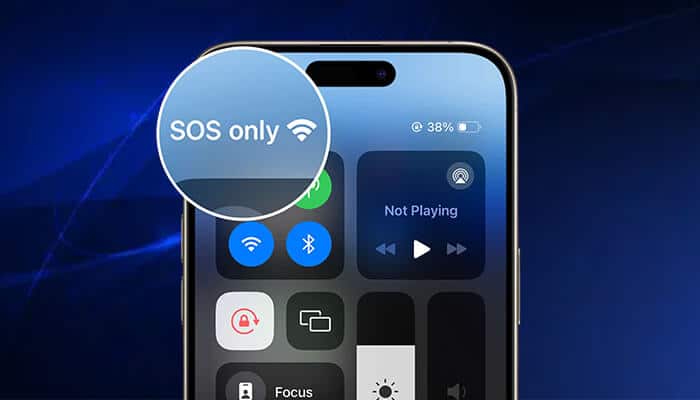
You should try to resolve the problem when your iPhone stuck in SOS mode because you can’t make calls or send messages.
Here are some solutions available for how do I get my phone out of SOS mode effectively.
1. Check your phone network settings
You should check the network settings on your phone to ensure that it has a strong signal system. If your phone is showing “No Service,” then you should try resetting your network settings. You can do it on your phone in the “settings” menu.
2. Restart your phone
You should restart your phone, which is the quickest way to fix the problem. Hold down the power button until you see “slide to power off.” The next step is restarting your device to get out of SOS mode.
3. Update iOS software
Software bugs or glitches can lead to SOS mode on your iPhone, and you should consider updating the software. This will help ensure that your phone device is up to date with the latest iOS version.
4. Toggle Airplane mode
You can turn on “airplane mode” for 10 seconds on your phone device to check whether the network connects or not.
5. Update carrier settings
You should check for carrier settings updates on your iPhone device with a cellular network or Wi-Fi. Select Settings > General > About, which allows you to view any carrier settings update option.
6. Inspecting hardware
You should inspect the hardware items on your iPhone device if the buttons are stuck.
Why does my phone say SOS-SOS only on iPhone? How to fix it
When your iPhone displays SOS, you should evaluate why does my phone say SOS to help eliminate the issues. Furthermore, you should focus on SOS only on iPhone how to fix it from different sources.
Here are some ways to prevent SOS mode activation.
1. Keeping the software updated
Enable automatic updates for your iOS devices that will help prevent your phone from entering SOS mode.
2. Protect your phone
You should protect your phone from water damage and cover your iPhone with a sturdy case to ensure more safety.
3. Activate roaming before you travel
Activate roaming before you travel to international countries to avoid SOS mode.
4. Disable auto-SOS shortcuts
You should disable auto-SOS shortcuts on your iPhone to overcome the SOS problem.
5. Adjust settings to avoid accidental activation
Go to Settings > Emergency SOS on your iOS phone and disable “Auto call.” By doing this, your phone won’t call emergency services automatically when you hold the side and volume buttons.
Why is my phone on SOS? Does it affect battery life?
You should know the causes for why is my phone on SOS mode. This is because SOS mode appears due to various factors, and you should fix them at the earliest. SOS mode can affect battery life, and you should take immediate action to resolve the issue.
Conclusion
An iPhone stuck in SOS mode can be alarming because it won’t allow you to make calls and send messages. You should understand what does SOS mean on iPhone, which will help you to fix the issue at the earliest. Furthermore, you can know the ways to prevent SOS mode on your phone to ensure a smooth experience. Fixing SOS provides methods to avoid unnecessary stress and enhance the functioning of your phone device efficiently. Also, it gives ways to make normal calls and send messages without any hassles.

